Create a backup of your server
Take an on-demand snapshot of your server from the Netlonics dashboard, then download, restore, or delete it whenever you need.
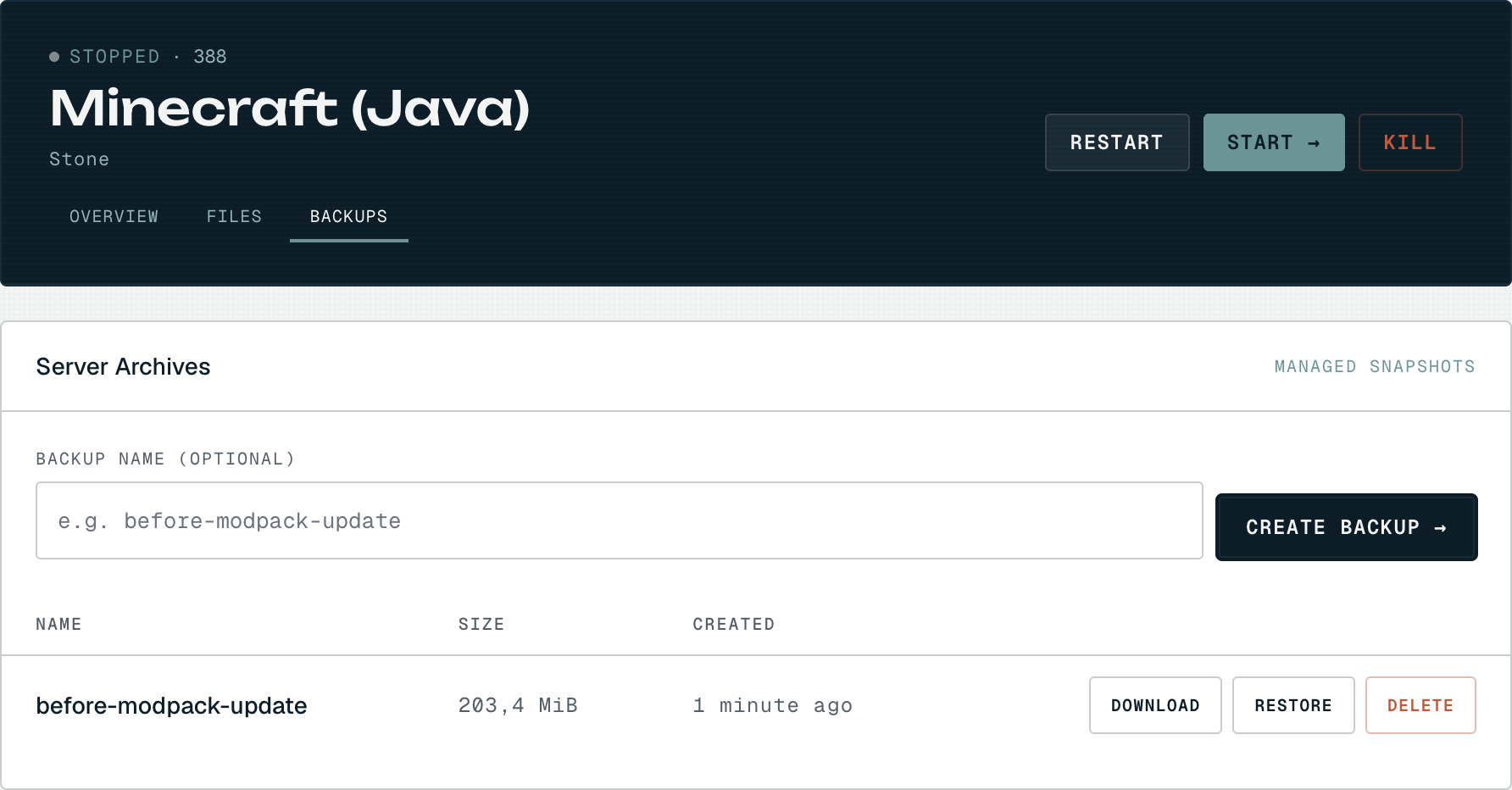
A backup is a full snapshot of your server's files, world, config, plugins, the lot, rolled into a single archive you can restore later or download to keep off-site. Take one before any risky change: a modpack update, a version bump, hand-editing config. It's a two-click job from the dashboard and finishes in under a minute for most worlds.
01 Open the Backups tab

Open the server from your dashboard, then switch to BACKUPS in the top navigation, next to OVERVIEW and FILES. You can back up a server whether it's running or stopped, but stopping it first (the STOP button on the Overview tab) gives the cleanest snapshot, nothing is mid-write while the archive is taken. The server above is stopped, which is the safest moment to capture one.
02 Name your backup and start it
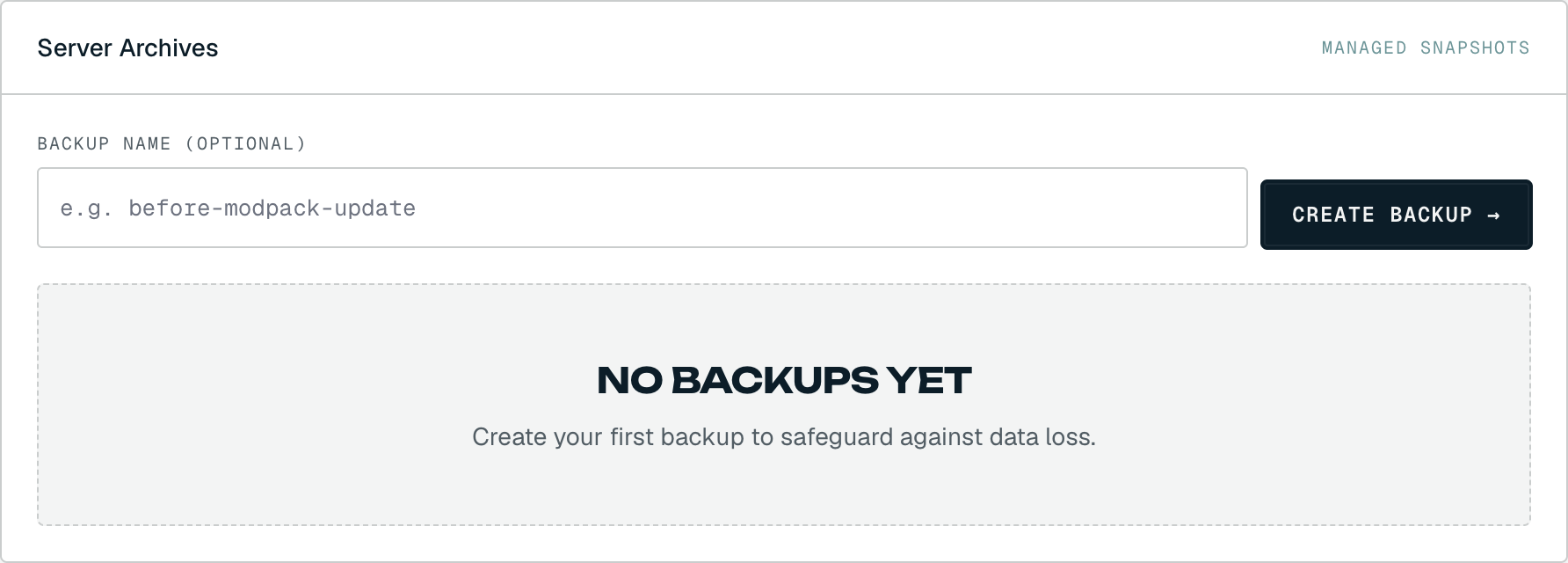
In the Server Archives panel, give the backup a name in the optional field, something you'll recognise later, like before-modpack-update, beats an auto-generated timestamp. Leave it blank and one is named for you. Click CREATE BACKUP to start. Your plan sets how many backups you can keep at once; if you're at the limit, delete an old one (step 4) to free a slot before creating a new one.
03 Wait for it to finish
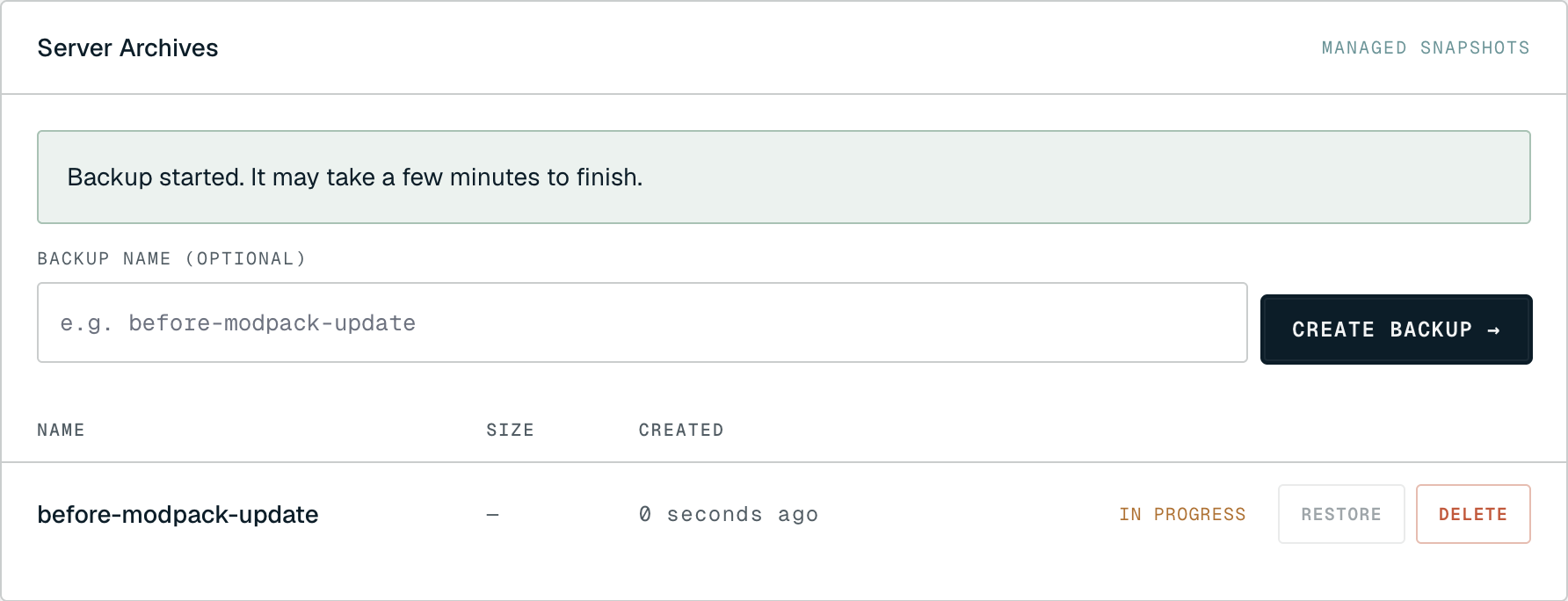
You'll see "Backup started. It may take a few minutes to finish." and a new row marked IN PROGRESS while the backend compresses your server into a single archive. A typical Minecraft world (a couple of hundred MB) finishes in well under a minute; larger or heavily modded worlds take longer. The list doesn't refresh on its own, reload the page to see the row flip from In progress to ready.
04 Download, restore, or delete
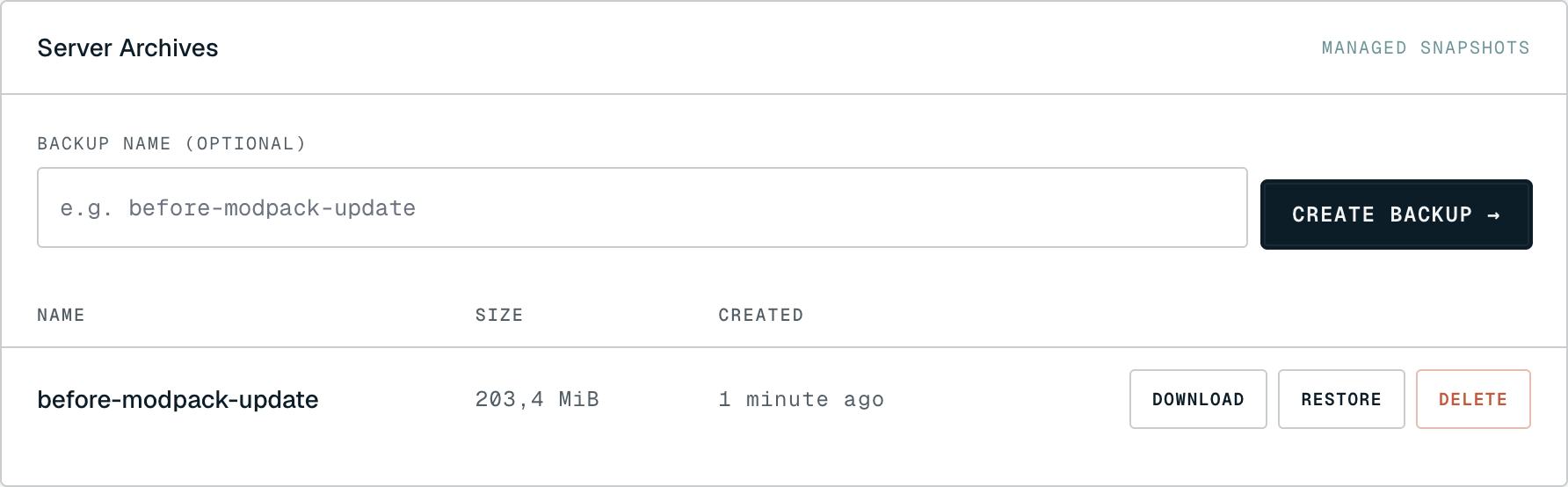
Once it's done the row shows the archive's size and three actions:
- DOWNLOAD pulls the
.tar.gzto your machine, a handy off-site copy in case you ever lose access. - RESTORE overwrites the current server with this snapshot. You'll be asked to confirm, and the server must be stopped first; everything since the backup was taken is replaced.
- DELETE removes the snapshot for good (with a confirm prompt) and frees up a backup slot.
Troubleshooting
- "Could not start the backup." You're most likely at your plan's backup limit. Delete an old backup to free a slot, then try again.
- The row is stuck on IN PROGRESS. The list doesn't poll for updates, reload the page to refresh it. For a large or modded world, give the backend a few minutes to finish compressing before assuming something's wrong.
- RESTORE is greyed out. Only a completed backup can be restored, so wait for it to finish. Restoring also requires the server to be stopped first, stop it from the OVERVIEW tab, then restore.
- Want a copy off our platform? Use DOWNLOAD to keep the archive on your own machine. To bring one back later, the Uploaded Archives panel just below lets you upload a
.tar.gzand restore from your own copy.