Configure your Palworld server variables
Every field on the Palworld Server Options panel, server name, max players, admin password, invader enemies, what each one does and when to change it.
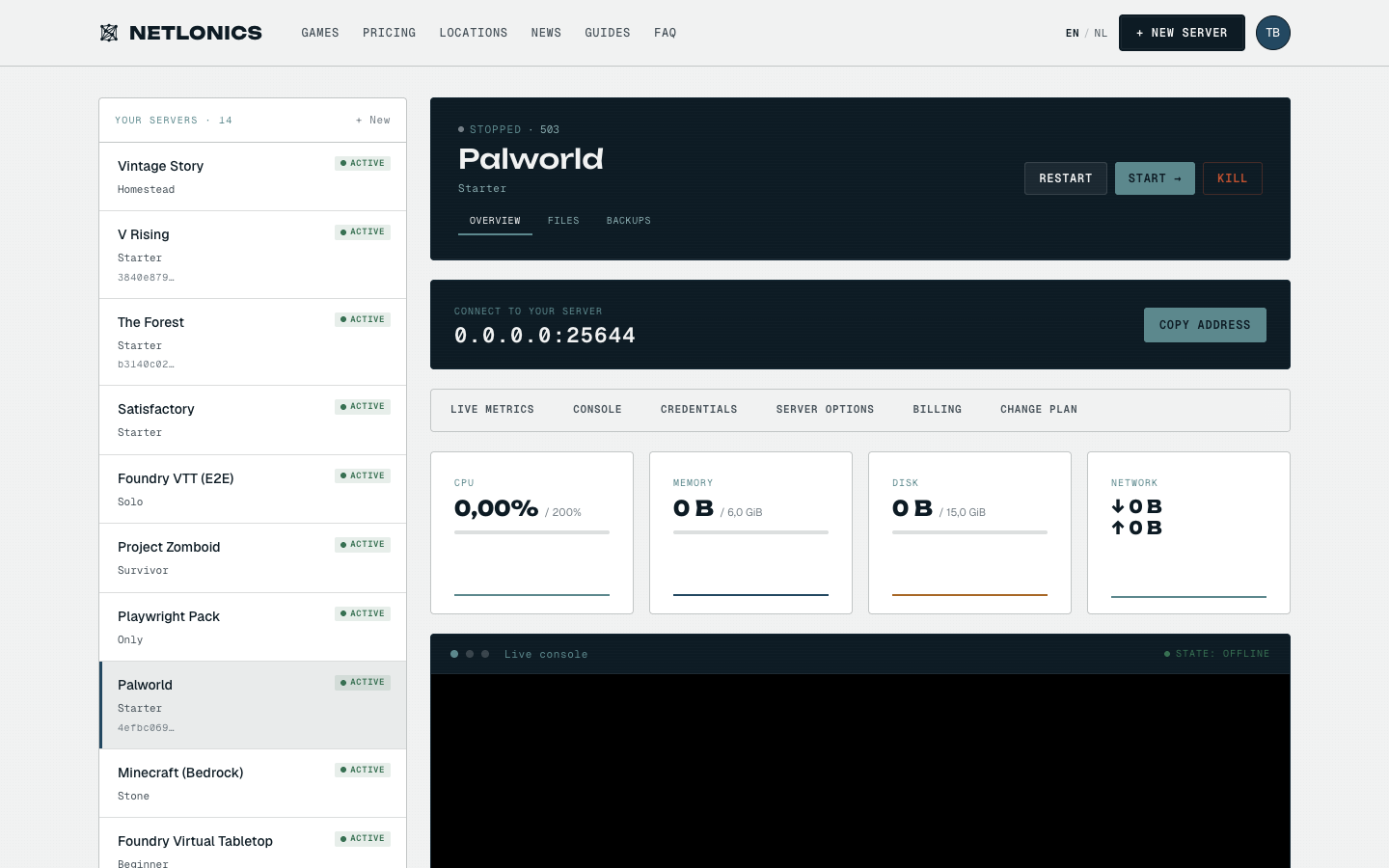
Palworld's dedicated server reads a handful of settings on every boot, the server's display name, the password the admin uses for RCON, whether invader enemies spawn, and so on. Netlonics surfaces all of these on the Server Options panel inside your dashboard so you don't have to SSH into the box or hand-edit PalWorldSettings.ini. This guide walks every field, explains why each one matters, and shows you what saving looks like.
01 Open Server Options on your Palworld server
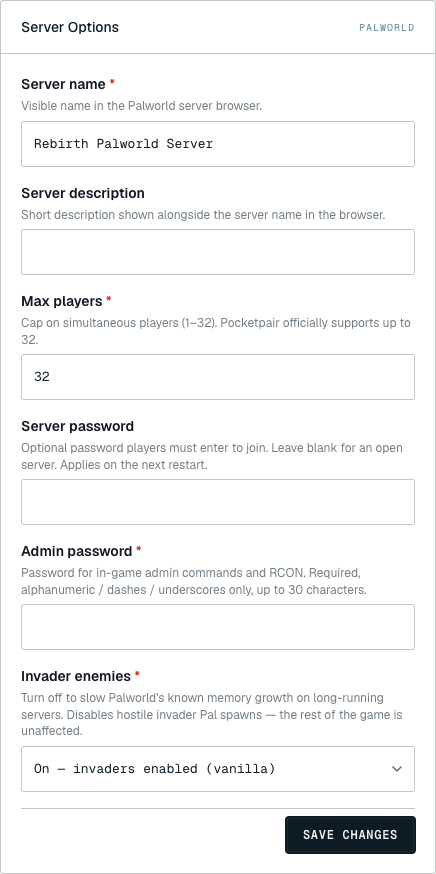
From your dashboard, click your Palworld card to enter the server detail page. Scroll past the live metrics and console down to the Server Options card on the right (or use the SERVER OPTIONS anchor in the in-page navigation). Every field below renders from the same source of truth the server reads at boot, Netlonics writes your edits into the server's environment and, on the next restart, Palworld picks them up.
02 The variables, one by one
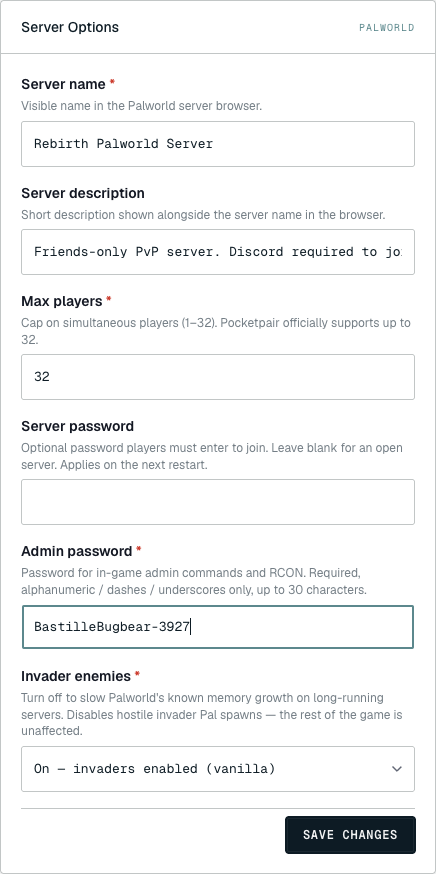
Each field maps to a single environment variable on the container. The order on the panel matches the order Pocketpair ships in their DefaultPalWorldSettings.ini, so you can cross-reference if you're coming from a self-hosted setup.
Server name (required), SERVER_NAME, max 80 characters. This is what other players see in the in-game server browser. Make it specific enough to find yourself in a long list. Pocketpair allows non-ASCII characters, so emoji and accented characters work, but Steam's filter is whitespace-sensitive, leading/trailing spaces get trimmed silently.
Server description (optional), SERVER_DESCRIPTION, max 128 characters. A short tagline shown alongside the name. Use it for the rules summary or "Discord-only" or "Active wipe, Jan 12". Leave blank if you have nothing useful to say; the field collapses out of the listing.
Max players (required, integer 1–32), MAX_PLAYERS. Pocketpair only officially supports up to 32 simultaneous connections. The dashboard rejects values above 32 because Palworld's networking gets unstable past that, desyncs and rubberbanding compound, even on faster boxes. Pick a number that matches your tier's RAM headroom: Starter (6 GB) comfortably runs 8–16; Crew (12 GB) handles the full 32.
Server password (optional, max 30 chars, alphanumeric/dashes/underscores only), SERVER_PASSWORD. Leave blank for an open public server. Set it to gate the server to friends or Discord members. Important: this is the join password, not the admin password, players type it once at connect, then the game remembers it. If you change the password while the server is running, currently connected players stay in; new joins need the new value.
Admin password (required, max 30 chars, alphanumeric/dashes/underscores only), ADMIN_PASSWORD. This is what you type into RCON or use in-game with /admin <password> to unlock admin commands (/kick, /ban, /save, /shutdown, server settings). Netlonics generates a random 20-character value when you provision a server, but you'll want to rotate it to something you can paste from your password manager, anyone with this password owns your server. Treat it like a root password.
Invader enemies (required, On/Off), ENABLE_ENEMY. Toggles hostile invader Pal spawns. On is the vanilla experience; the rest of the game is unaffected. Why you might want it off: Palworld has a well-known memory leak on long-running servers that's significantly slower when invader spawns are disabled. If your server hits the 6 GB / 12 GB RAM cap on Day 3 every wipe, flipping this off buys you days, sometimes weeks. The downside is the obvious one, no more invader fights, which removes a chunk of mid-late game loot drops.
03 Save and restart
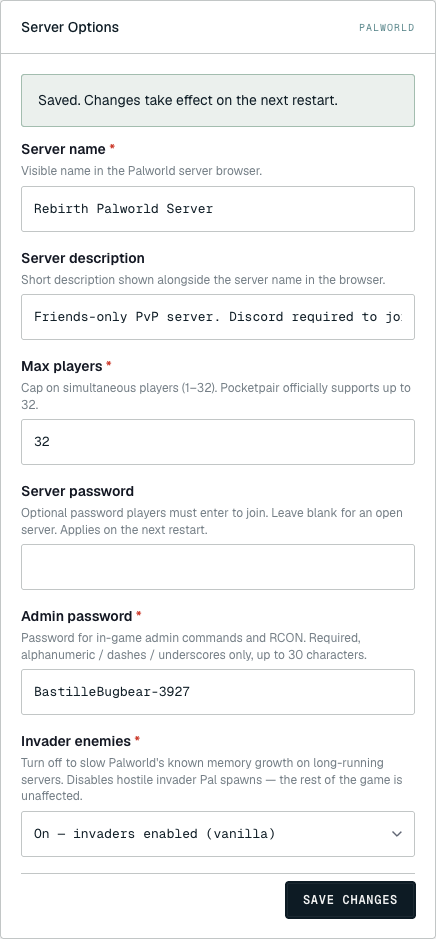
Click SAVE CHANGES. The dashboard writes your edits to the server's environment immediately and confirms with the green "Saved. Changes take effect on the next restart." banner.
The wording is exact: changes are persisted the moment you save, but Palworld only reads them at boot. So either:
- Restart now, open the OVERVIEW tab, click RESTART. Players currently in get disconnected, and Palworld comes back up reading the new values. ~30 seconds for the world to be back online.
- Restart later, leave the server running with the old values and the new values will apply on the next scheduled or operator-triggered restart. Use this when you're tweaking ahead of a maintenance window.
Server name and description specifically also update on the server browser within a minute of restart, Pocketpair's listing service refreshes lazily.
Troubleshooting
- The admin password is too long / has special characters and validation rejects it. Pocketpair's allowed character set is letters, digits, dashes, and underscores only, max 30. No spaces, no punctuation. Generate a fresh value in your password manager constrained to those characters.
- I set max players to 64 and it won't save. That's the dashboard refusing to let you ship a broken server. Pocketpair's documented max is 32; values above that cause network desyncs that take hours to debug. If you genuinely need more, contact support, we have notes from operators who tried.
- The server description shows truncated in-game. Steam truncates descriptions to roughly 60 characters in the listing. The full 128-char value is sent, but the browser only renders the prefix. Front-load the important part.
- Players say my server doesn't appear in the browser even after a save. Two checks: confirm the server is Online (not Stopped) on the dashboard, and remember Steam's listing service refreshes lazily, give it 5 minutes after restart before assuming something's wrong. If it still doesn't show, try a direct-connect to the address shown on the dashboard, if that works, it's a listing-service delay, not a server problem.
- Memory keeps climbing and the server crashes after a couple of days. That's Palworld's known leak, not your config. Flip Invader enemies to Off (above) for a significant slowdown; combine with a daily scheduled restart from the OVERVIEW tab as a belt-and-braces fix.
- I want to edit settings the panel doesn't expose. Most "deeper" Palworld settings (XP rate, death penalty, breeding speed) live in
PalWorldSettings.iniinside the world save directory. Open the FILES tab and use the inline file editor. Save the file, then restart for the changes to take effect.
If you also manage another survival server: the same Server Options panel pattern applies to your V Rising server and The Forest server, different fields, same flow. Coming from Minecraft? The Server Options panel works exactly like the Minecraft version selector, minus the destructive reinstall step.