Configure your V Rising server variables
Every field on the V Rising Server Options panel, name, password, max players, game settings preset, Steam and Epic visibility, explained with the trade-offs.
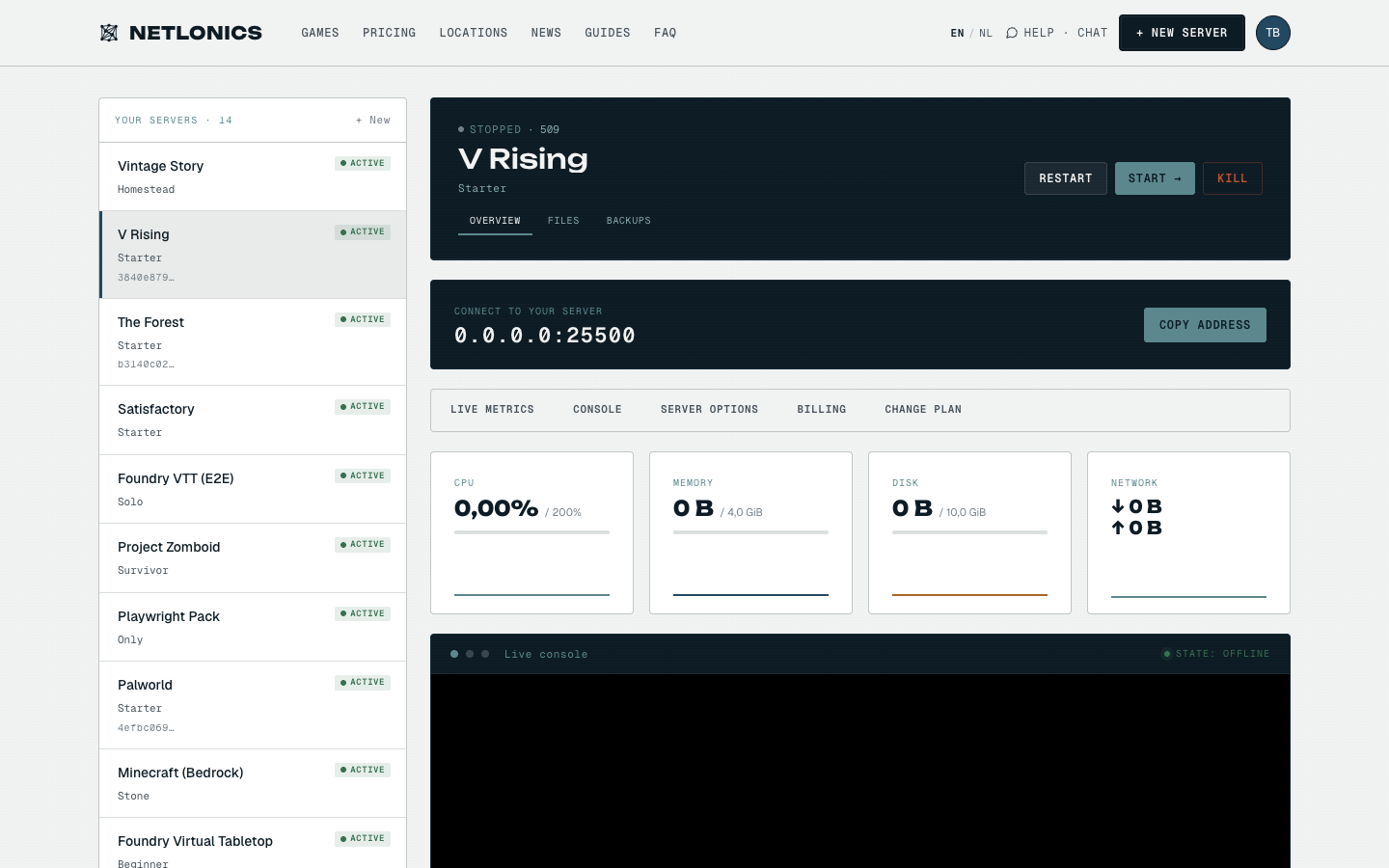
V Rising's dedicated server has roughly two dozen tunables in total, but the seven that genuinely matter for a friends-or-public server are on the Netlonics dashboard's Server Options panel: the display name, the join password, the player cap, Stunlock's pre-canned difficulty / PvP preset, and which server browsers to list on. This guide explains every field, the consequences of each value, and the one variable you should not change after the world has been generated.
01 Open Server Options on your V Rising server
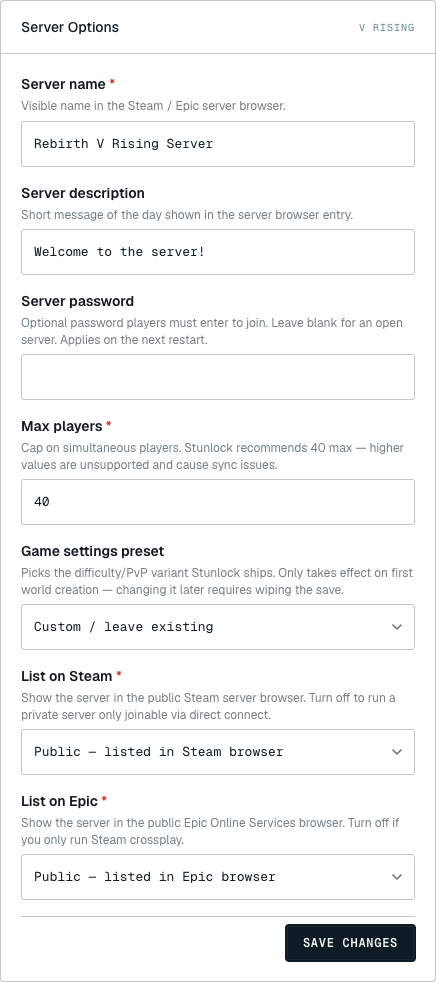
From your dashboard, open the V Rising card. The Server Options panel sits below the live metrics and console, in the right column of the OVERVIEW tab. Every field maps directly to the ServerHostSettings.json and ServerGameSettings.json files V Rising reads at boot, you don't have to touch the JSON yourself.
02 The variables, one by one
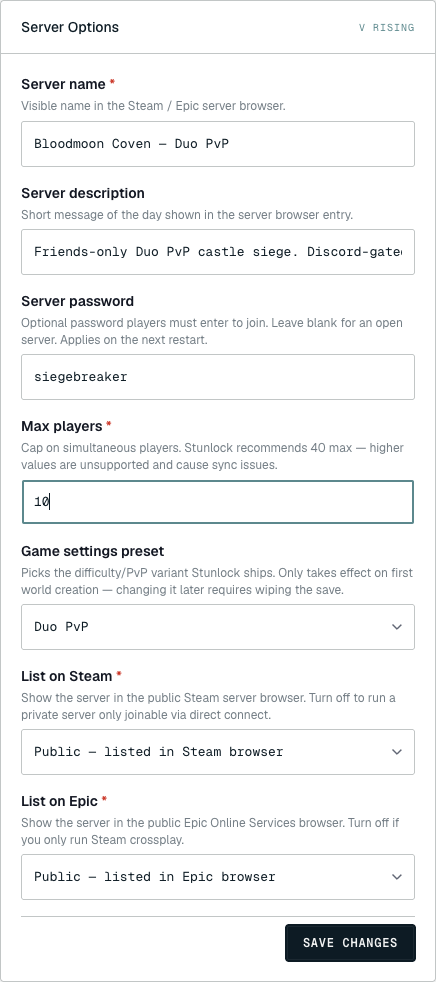
The seven fields split into three groups: identity (name, description), access control (password, max players), and matchmaking (game preset, Steam/Epic listing).
Server name (required, max 80 chars), SERVER_NAME. The display name in Steam's and Epic's server browser. Players use this to find your server, so include something searchable: PvP/PvE flag, region, group name. Stunlock allows Unicode characters, emoji and accented letters render fine.
Server description (optional, max 256 chars), DESCRIPTION. A longer "message of the day"-style blurb shown in the listing detail. Use it for rules, Discord links, or wipe schedule. Stunlock's listing renders it on its own line below the name; leave blank if you don't need it.
Server password (optional, max 32 chars), SERVER_PASSWORD. Leave blank for an open server. Set it to gate the server to friends. Note: the password takes effect on the next restart, not immediately, if you change it while the server is running, the current connections continue with the old value until the server cycles.
Max players (required, integer 1–40), MAX_PLAYERS. Stunlock's hard cap is 40 and the dashboard enforces it. Anything above 40 is unsupported and causes documented sync issues in PvP, even on the Clan tier (12 GB RAM, 4 vCPU) the server-side simulation degrades past 40 concurrent. For Duo or Solo PvP, drop this to the actual table size (2, 4, 8) so a stray public visitor can't burn a connection slot.
Game settings preset (optional, takes effect on first world creation only), GAME_SETTINGS_PRESET. This is the most important field on the panel and the one with a footgun. Picks a Stunlock-supplied preset for the world's difficulty and PvP variant. The full set:
Custom / leave existing, what the server has now stays unchanged; pick this when you want to hand-editServerGameSettings.jsonvia the file manager.Standard PvE,Standard PvE, Easy,Standard PvE, Hard, vanilla cooperative play, three difficulty levels.Standard PvP,Standard PvP, Easy,Standard PvP, Hard, vanilla open PvP, three difficulty levels.Solo PvP,Duo PvP, restricted-clan-size PvP (1 or 2 players per clan), the most popular comp formats.Level 30 PvE,Level 30 PvP,Level 50 PvE,Level 50 PvP,Level 70 PvE,Level 70 PvP, accelerated-progression presets that start players at the listed level cap, great for short events.Hardcore PvP, perma-death, character wipe on death. The most punishing mode Stunlock ships.
The footgun: this preset applies only on first world creation. Once your save exists on disk, the field is ignored on subsequent boots, Stunlock reads the world's existing settings, not the env var. To genuinely switch presets after the world is live, you have to wipe the save and let the server regenerate. If you just want to tweak one or two values (like respawn cost or resource yield), pick Custom / leave existing here and edit ServerGameSettings.json directly via the file manager.
List on Steam (required, Public/Private), LIST_STEAM. Public shows your server in the Steam in-game browser; Private hides it. Use Private for friends-only servers, players still join via the direct-connect address Netlonics shows on the dashboard, but random Steam users can't browse to you.
List on Epic (required, Public/Private), LIST_EOS. The Epic Online Services equivalent. If you're Steam-only (most operators), it doesn't matter what this is set to, Epic visibility only affects crossplay clients who launched V Rising from the Epic Games Store. Stunlock recommends leaving both Public unless you have a reason.
03 Save and restart
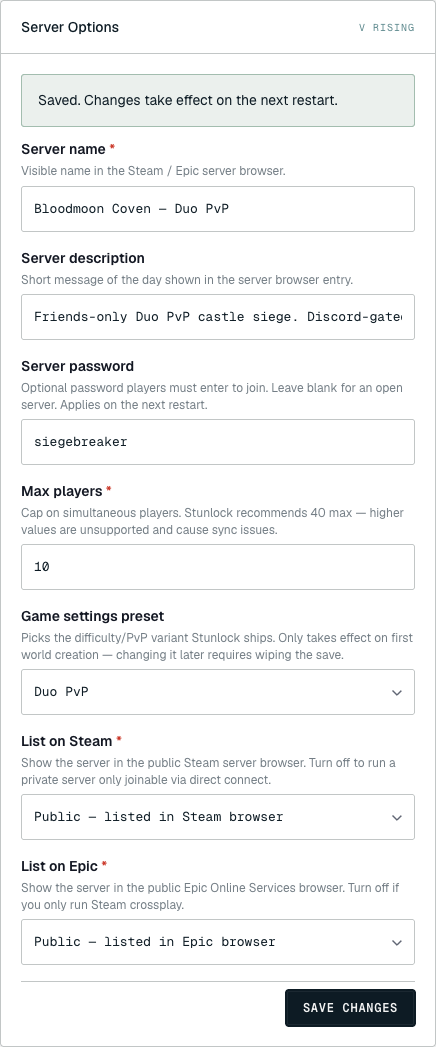
Click SAVE CHANGES and the dashboard confirms with the green "Saved. Changes take effect on the next restart." banner. The values are written to disk immediately; V Rising re-reads them on the next boot.
Trigger that boot from the OVERVIEW tab's RESTART button. V Rising's first boot after a config change takes ~45 seconds: the server reloads ServerHostSettings.json / ServerGameSettings.json, validates against the chosen preset, and comes back online. Players in the game when you restart get a "server is restarting" message and reconnect when the server's back.
Special case, preset change on an existing world. If you switched Game settings preset from one value to another and the world already exists, V Rising silently keeps the old settings on restart. The dashboard banner says "Saved", which it was, but the preset only applies on world creation. To force the new preset to take effect, you have to delete Saves/v3-server/* via the file manager before the next restart. This wipes the world. Take a backup first if you have anything you want to keep.
Troubleshooting
- I switched the preset and the world feels exactly the same. Expected, see "Special case" above. Presets apply on world creation, not on subsequent boots. Either wipe the save or edit
ServerGameSettings.jsondirectly. - Max players validation rejects my value. Stunlock's cap is 40; values above that aren't supported and the dashboard blocks them. If you genuinely need a 50-slot server, V Rising isn't the right game for that, sync issues at 50+ players are unrecoverable.
- Players say my server is in the Steam browser even though I set List on Steam to Private. Steam's listing service has a 5–10 minute propagation delay after a restart. Check again after a coffee. If it still shows after 15 minutes, confirm the server actually restarted on the OVERVIEW tab, the banner only confirms the save, not the restart.
- The server description doesn't render on the browser entry. Stunlock truncates the description in the listing-card view and only shows the full text when a player clicks into the server detail. Front-load the important part of the description in the first 60 characters.
- Where do I edit the deeper game settings (loot yield, respawn cost, blood essence multipliers)? Those live in
ServerGameSettings.json. Open the FILES tab and edit via the inline file editor. Apply on next restart. - My server name has emoji and they show as squares. Stunlock's UI font doesn't ship glyphs for every emoji. The character is in the server name correctly, it just won't render on every client. Plain text is more reliable.
Running another survival server? See the same Server Options walkthrough for your Palworld server and The Forest server, different fields, same dashboard flow. The Minecraft equivalent walkthrough is the version selector guide.