How to set up a Hytale server
Order, then let the dashboard walk you through Hytale's two account sign-ins with one-tap cards — from checkout to playing with friends.

Setting up a Hytale server usually means typing the game's account sign-in commands into a server console by hand. On Netlonics you never touch the console: the dashboard turns Hytale's sign-in into two tap-to-approve cards and walks you from checkout to playing. You sign in to Hytale twice — once so your server can download its files, then once more so your friends can join — and each time it's one button and a short code you confirm on Hytale's own site. The one thing to know up front: you, and everyone who joins, need to own Hytale and sign in with a Hytale account.
The dashboard shows a five-step tracker for exactly this — Game sign-in → Download → Server boots → Server sign-in → Play — and lights up the right card at the right moment, so you're never hunting for what to do next.
01 Pick a plan
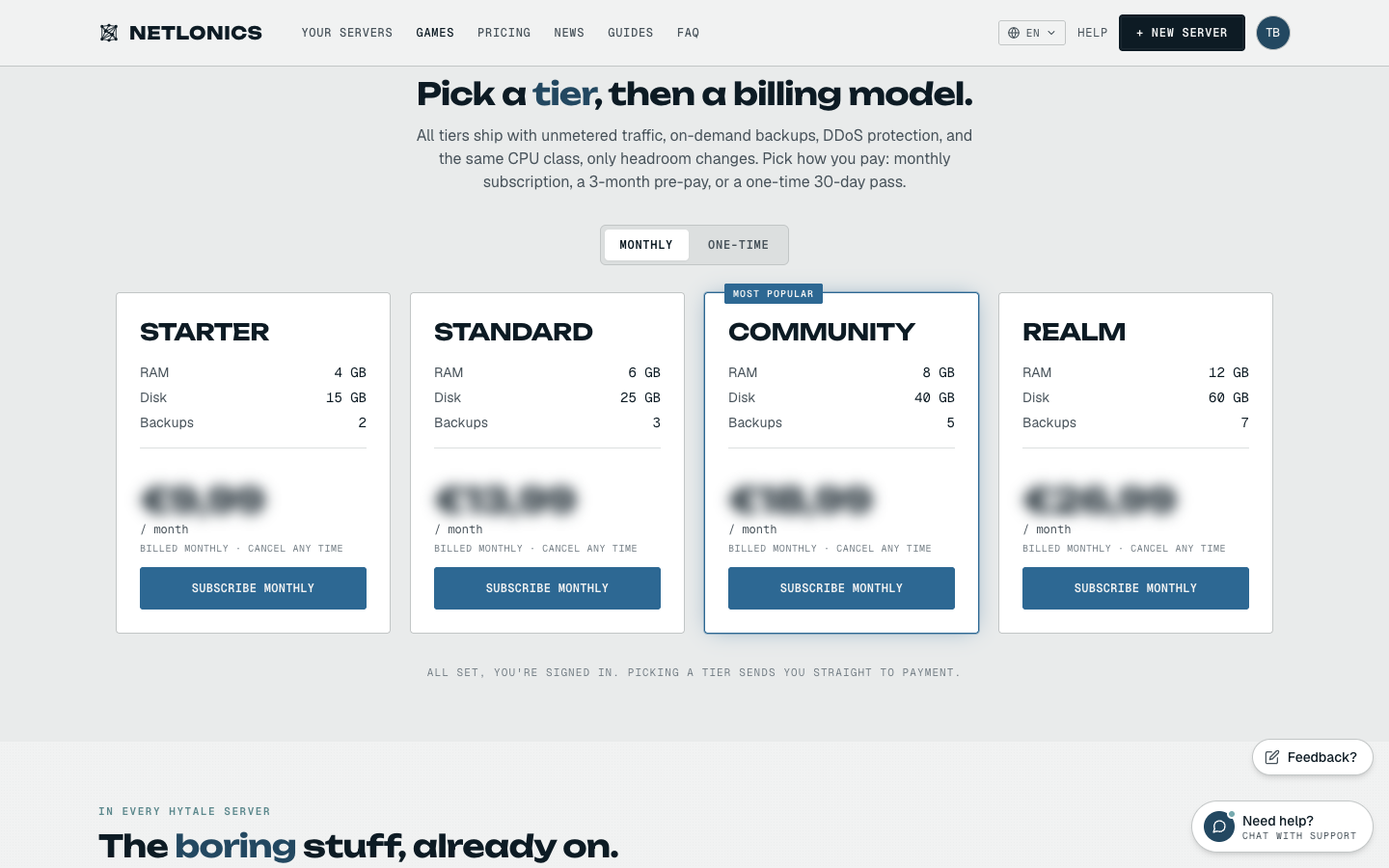
On the Hytale page, pick a tier by how much headroom you want — every tier shares the same CPU class, so you're really choosing RAM, disk and backup slots. A few friends are fine on the smallest tier; a busy community world wants more RAM. Use the Monthly / One-time toggle to choose how you pay: a rolling monthly subscription you can cancel any time, or a one-time pass with no auto-renewal. Live pricing is on the Hytale page itself.
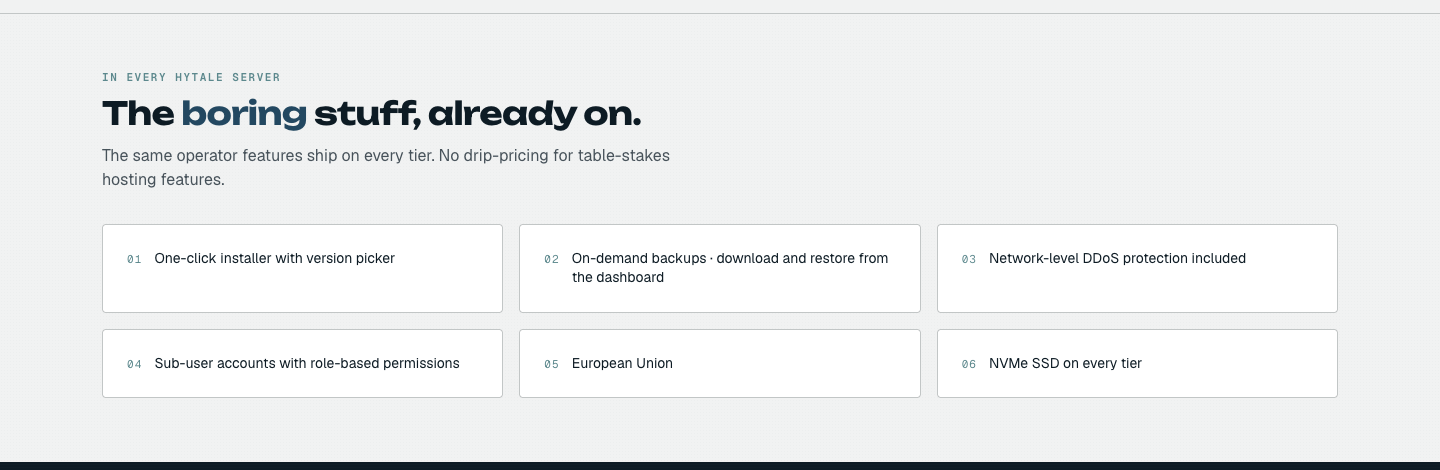
Every tier ships with the same operator features — there's no drip-pricing for the basics like the installer, backups and DDoS protection:
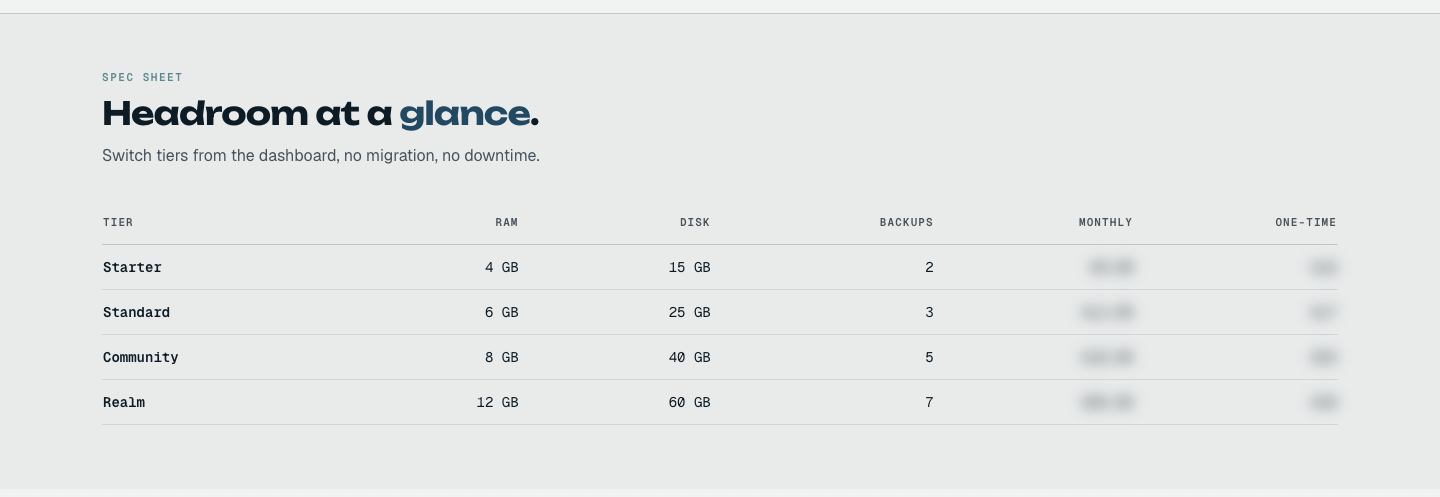
If you're weighing tiers, the page's spec sheet lays them side by side, so you can match RAM and disk to the size of your world. You can also switch tiers later from the dashboard with no migration and no downtime, so it's fine to start small and grow.
02 Check out
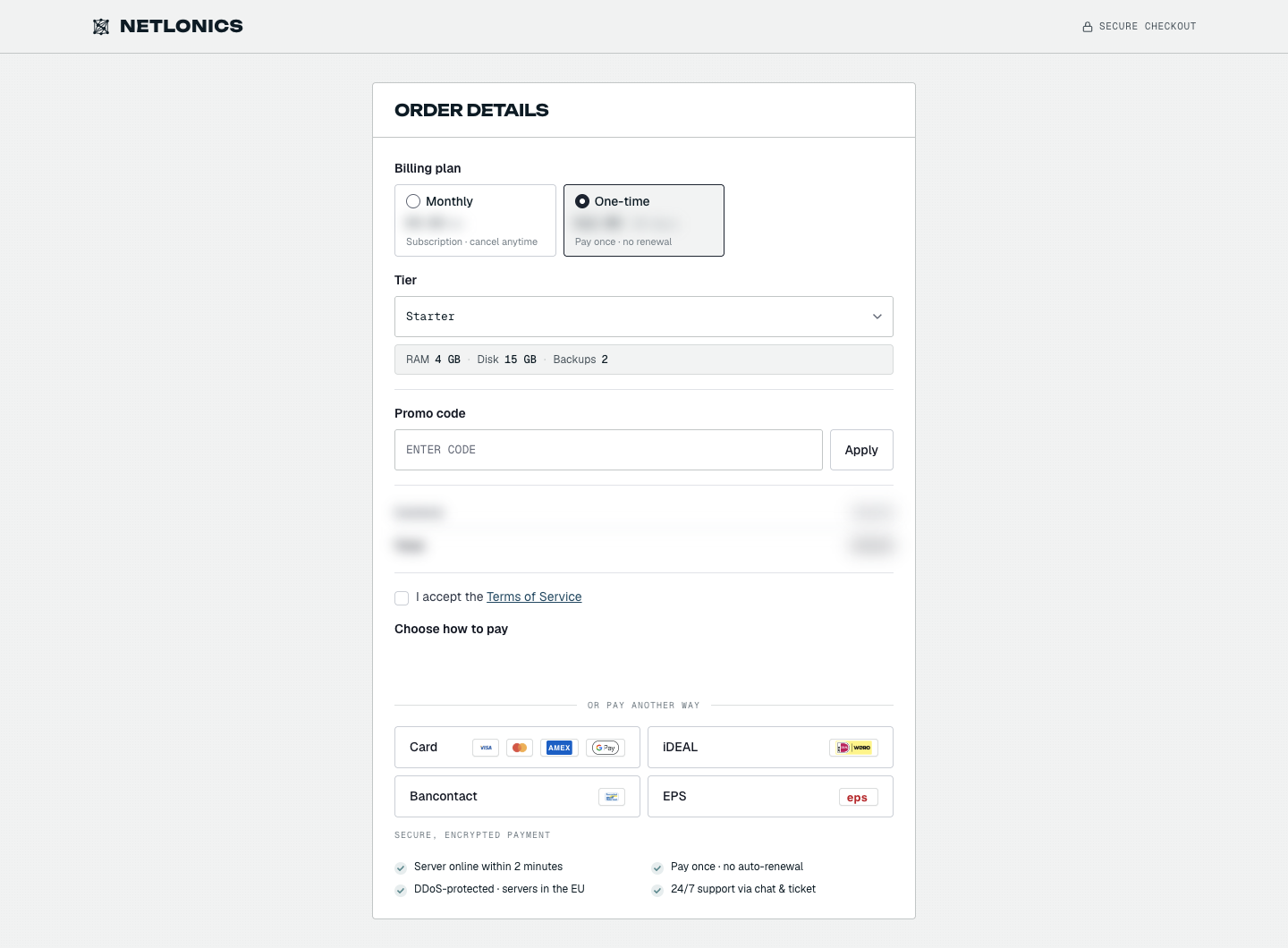
Checkout is one page. Confirm the tier and billing model, drop in a promo code if you have one, tick I accept the Terms of Service, and pay — card, iDEAL, Bancontact and the rest are all there. If you're already signed in, there's nothing else to fill in.
03 Watch it deploy
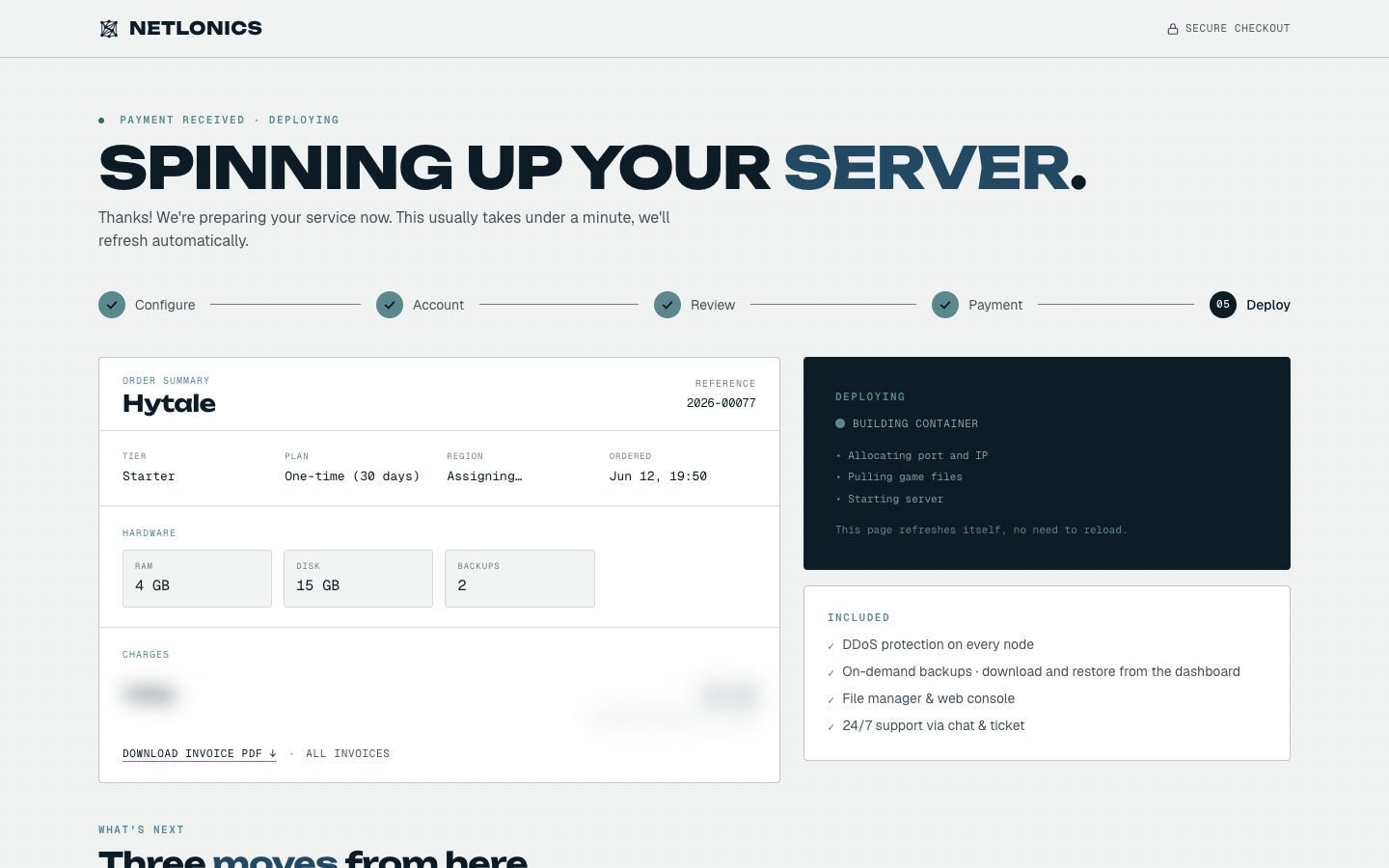
After payment your server is provisioned in about two minutes — a container is built, a port and address are allocated, and the server is started. Then there's a short wait while it pulls Hytale's game files for the first time (these are larger than most games, so give it a few minutes). You don't need to refresh — the page updates itself, and the sign-in cards appear the moment they're needed.
04 Game sign-in — so your server can download itself
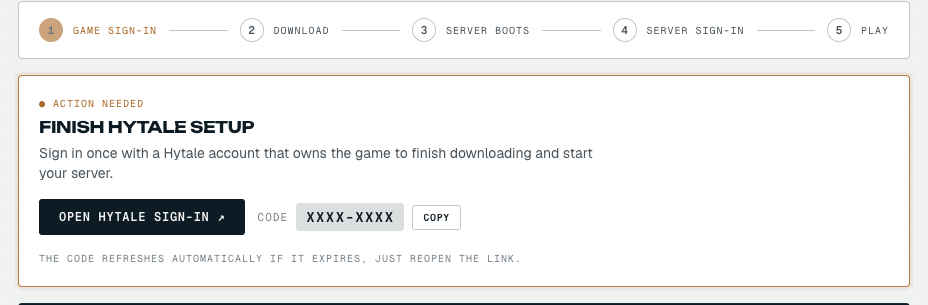
The first card, Finish Hytale setup, is the game sign-in: it lets your server download Hytale's files. Click Open Hytale sign-in, then on Hytale's own site enter the short code shown on the card and approve it with a Hytale account that owns the game. That's the whole step — one button, one code. If the code ever runs out before you get to it, the card hands you a fresh one automatically.
Open Hytale sign-in takes you to Hytale's own page — type the code from the card, hit Continue, then approve with your Hytale account. Both of the sign-ins in this guide use this same Hytale page:
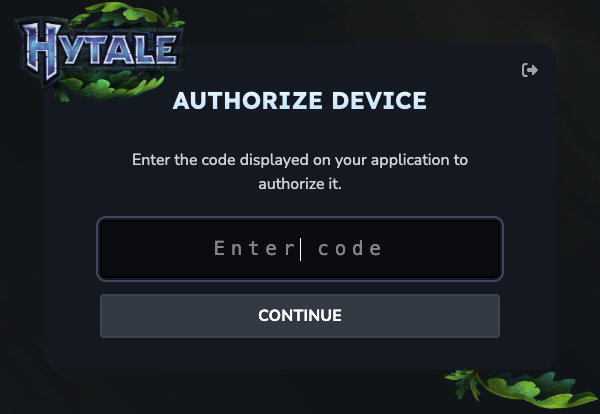
Once you approve, your server downloads its files, generates a world and boots itself. The tracker ticks Download and Server boots off for you while you wait.
05 Server sign-in — so your friends can join
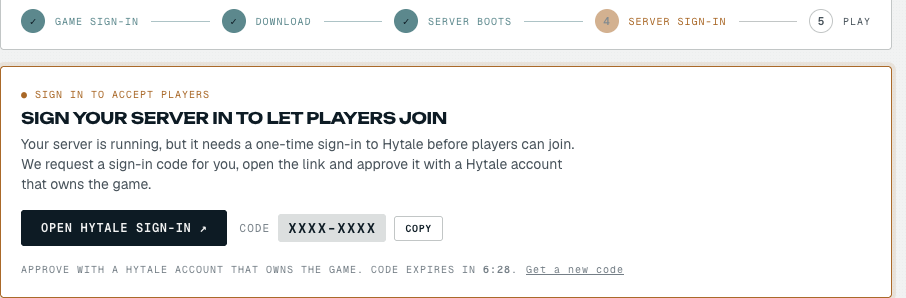
When the server is up, a second card appears: Sign your server in to let players join. This is the server sign-in. It's the same one-tap flow as before — Open Hytale sign-in, approve the code with a Hytale account that owns the game — and it's what tells Hytale your server is allowed to accept real players. You only do this once; the server remembers it across restarts.
06 You're live

That's it — the tracker lands on Play, the panel reads Signed in, players can join, and your server's join address is right there with a Copy address button. Share that address with your friends (it's emailed to you too). Each of them joins with their own Hytale account, and you're playing.
From here, the dashboard gives you a live console, one-click restart, and the same tools every Netlonics server ships with — set up an automatic backup before your first big session, and you can edit server files any time from the Files tab.
Troubleshooting
- I approved the first sign-in, but my friends still can't join. That first one (the game sign-in) only lets the server download itself. Joining needs the second card — Sign your server in to let players join — which appears once the server has finished downloading and booted. Wait for it, then approve that one too.
- I approved a code but nothing happened. Sign-in codes are time-limited. If one runs out the card gives you a fresh one — automatically, or via its refresh option — so just open the link again and approve the new code promptly on Hytale's site.
- Do my friends need to own Hytale? Yes. Your server signs players in against their Hytale accounts, so everyone joining needs to own the game and sign in with their own account.
- The download is taking a few minutes. That's normal on first boot — Hytale's files are larger than most games, and the server also generates its world before it comes online. The page refreshes itself; you don't need to reload.
- Where's my connect address? On the server's Overview tab once it's signed in (the Join at panel), and in the confirmation email we send when your server goes live.